 Yiwaiwai
 Yiwaiwai advanced scripts: hotkeys, triggers and variables
From hotkeys and keyword triggers to grouping, variable insertion and image-text scripts, master Yiwaiwai’s advanced script setup so support replies fast and accurately.

How do you set a frequently used canned response to a shortcut key in Yiwaiwai to send it with one click, and what are the exact steps?
Yiwaiwai uses the global custom hotkey feature; note that it is a VIP membership feature and is not in the free version.
The rough steps: 1) Activate a membership. 2) Go to canned-response management and select the frequently used canned response you want to bind. 3) Assign it a set of global hotkeys (set the key combination as prompted by the client).
4) After saving, press that hotkey in any chat window to send this canned response to the chat box with one click, without double-clicking in the panel again. The exact setup entry follows the client interface and is to be confirmed through testing. The free version instead uses the double-click-to-send method.
How do I manage quick replies in Yiwaiwai by groups so they are easy to find when there are many customers?
Yiwaiwai canned responses are managed by levels. The basic structure is public scripts plus private scripts, and some editions further break it down into three levels: company, group, and private.
You can sort different types of scripts such as shipping, after-sales, and payment reminders into different groups. Public and company scripts are shared by the team, while private scripts are visible only to yourself, so even with many customers you can quickly find the matching reply by category.
The exact steps for creating and naming groups are done in the script management screen of the client. The official documentation does not separately list detailed steps, so you can confirm them by actually operating in the client.
How do I trigger Yiwaiwai quick replies with keywords so they pop up when I type letters?
Yiwaiwai supports quickly invoking canned responses, and VIP membership also provides multi-keyword search and global custom hotkeys, so you can use a keyword search to quickly locate the matching script and then double-click to send it.
To achieve keyword triggering, where typing a few characters or letters pops up the matching reply, you usually need to set keywords or abbreviations for the scripts and use them together with multi-keyword search (these are Pro and VIP exclusive; the free edition does not have them). The exact entry point for trigger settings is in the script editing area of the client. The official documentation does not separately list detailed steps, so it needs to be confirmed through testing in the client.
How do I insert variables such as a customer nickname or order number into a Yiwaiwai canned response?
The available official materials do not clearly state that Yiwaiwai supports inserting automatic variables such as a customer nickname or order number into canned responses.
This kind of dynamic variable or field substitution feature is supported by some quick-reply tools and not by others. Whether Yiwaiwai supports it and how to set it up is not covered by the materials, so you need to confirm it through testing in the client or by asking official customer service. A safe alternative is to make the script into a template with blanks left open, and fill in the nickname and order number by hand after sending.
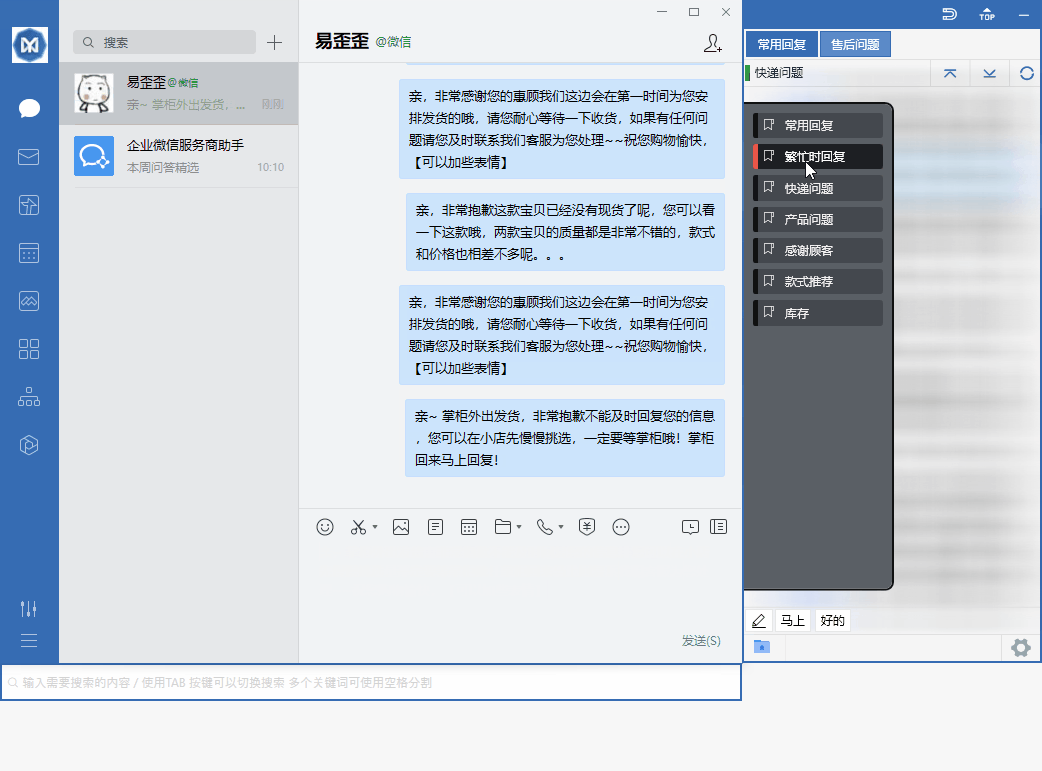
Can Yiwaiwai combine an image-and-text canned response into a single message with the picture and text sent together?
Yiwaiwai is a window-docking quick-reply tool that supports invoking script content and sending it to the chat window.
Whether it supports packaging an image and text into a single combined image-and-text canned response sent together is not clearly stated in the available official materials, so you need to confirm it through testing in the client. If combining into a single message is not supported, the common alternative is to create the image and the text as two adjacent scripts, and when needed double-click them in a row to send the image first and then the text, which can also quickly complete an image-and-text reply.
Can Yiwaiwai be set up to send the same set of canned responses to multiple customers with one click?
The core of Yiwaiwai is window-docking quick replies, where you double-click a canned response to send it to the current chat window.
The official materials do not mention a bulk-send feature such as sending the same set of scripts to multiple customers with one click, so whether bulk sending is supported cannot be confirmed, and you need to confirm it yourself through testing or by asking official customer service. One reminder: many e-commerce and chat platforms have risk-control restrictions on bulk sending, and even if it is possible you should be careful to avoid the account being flagged as abnormal. Whether a bulk-send feature exists needs to be confirmed through testing.
Compiled from public sources such as Taobao Qianniu, Pinduoduo Merchant, Douyin E-commerce and others; every link is clickable for verification.
Frequently Asked Questions
Is there a complete how-to video or illustrated tutorial for Yiwaiwai beginners?
The Yiwaiwai official help site has fairly complete illustrated FAQs covering common questions such as registration, download and installation, and multi-device use, so beginners can look up the exact operations there. Whether there is a full set of official how-to videos is not clearly explained in the public materials and would need to be confirmed through testing. Getting started is actually not complicated; just remember the main thread: download and install (look for the official site yiwaiwaiservice.com), the software automatically docks to the chat window, edit a few common canned responses, and double-click or use a hotkey to send. Get this flow working first, then study advanced features such as bulk import and cloud sync as needed.
Can the free version of Yiwaiwai use quick replies and docking, and what does membership unlock?
Yes. The basic features of Yiwaiwai are permanently free - after download and installation you can use quick replies, window docking, and canned-response editing without requiring registration, and double-click to send, which meets everyday service needs. Membership (VIP) mainly unlocks the following: phrase storage raised from about 200 entries to 10,000 or more, multi-keyword search, global custom hotkeys, bulk operations, Excel/EBF import and export, cloud sync and multi-device roaming, team-shared canned responses, 7-day automatic cloud backup, and so on. In short: for personal use with low volume, the free version is enough; for a massive number of canned responses, bulk management, and multi-person team sync, upgrade to membership.
How do you set up multi-device synchronized sign-in for Yiwaiwai, since the company has several computers that need the same canned responses?
The Yiwaiwai approach is that all the computers sign in to the online-version client with the same account, and the canned responses will then sync to the cloud in real time and stay consistent; a change on one device automatically updates the other signed-in devices. For team scenarios, it is recommended to put shared content in the public / company canned responses (shared by everyone, editable by several people at the same time with real-time sync), while private canned responses are visible only to the owner. Members can also create several customer service sub-accounts and assign roles and permissions. Key point: the number of devices online at the same time is limited by the license type, so for several computers please choose a license that supports multiple devices or the enterprise version, and view the online devices under account management / device management in the back end.
Can Yiwaiwai be signed in with a WeChat QR code, and how do I import canned responses after scanning?
Based on the available official materials, Yiwaiwai registration and sign-in is primarily by phone number (enter a phone number plus an SMS verification code), and some pages also support email plus password registration. There is no mention of signing in via a WeChat QR code. So WeChat QR code sign-in cannot be confirmed as supported at present, and it is recommended to rely on the actual entry point on the official sign-in page. The general way to import canned responses is to use the import feature inside the client (Excel and EBF formats are supported) to bring scripts in batches. Whether WeChat QR code sign-in exists needs to be confirmed by your own testing or by asking official customer service.
Does Yiwaiwai support importing canned responses from an Excel spreadsheet, and what format should the spreadsheet follow?
Yes, it is supported. Yiwaiwai VIP membership provides Excel and EBF import and export, so you can import canned responses in batches with an Excel spreadsheet. However, the official materials do not give the exact column format of the Excel template (such as which column holds the title, which holds the content, and which holds the keywords), so it is recommended to download the official import template inside the import feature of the client and fill it in according to the column order of the template, which is the safest. The exact spreadsheet format should follow the actual template in the client, and needs to be confirmed through testing.
How do I import a canned-response package shared by someone else into my own Yiwaiwai account?
Yiwaiwai supports importing and exporting canned responses, and VIP membership can import and export in Excel and EBF formats. If what someone shares with you is an exported script file (such as EBF or Excel), you can select that file to import in the import feature of your own client, and after importing it goes into your script library. With the connected edition it also syncs to the cloud and becomes available across devices. Note that the import file format must be correct; the wrong format will cause an error. The exact import entry point and the format of the shared package should follow the actual client, and need to be confirmed through testing.
Traditional Chinese characters in Yiwaiwai canned responses turn into garbled text after import. How do I fix it?
Garbled text after import is usually caused by a mismatch between the text encoding of the import file and the encoding the software reads (commonly when Excel or text is saved with the wrong encoding). Workable options: save the Excel or text file you want to import as UTF-8 encoding and import it again, or confirm the content displays correctly in Excel before using the import feature of the software. Yiwaiwai has no dedicated documentation about garbled traditional Chinese characters; this is a general encoding problem, and handling it with the methods above usually resolves it, though you still need to confirm it yourself through testing.
Can Yiwaiwai import multilingual canned responses in Thai and Vietnamese to send to local customers?
Yiwaiwai supports importing canned responses via Excel and EBF, so in principle you can make Thai and Vietnamese scripts into a spreadsheet, import and save them for use, and double-click to send them just like Chinese scripts. However, the official materials have no dedicated documentation for multiple languages or less common languages, so when importing such text take care to use UTF-8 encoding for the file to avoid garbled text. Whether Thai and Vietnamese can display and send perfectly, and whether the overseas platform you send to supports them, is something you should confirm by importing a small amount for testing before using it in bulk.
How do you turn on cloud sync of canned responses in Yiwaiwai, and when you sign in on a different device, will the canned responses sync automatically?
Yiwaiwai can sync automatically. Cloud sync is an online-version / VIP feature: after you sign in to the client with your account and password, the canned-response data syncs to the cloud in real time, so a change made on one device automatically updates other signed-in devices, and signing in on a different device also shows the same canned responses. To enable it, register and sign in to an account and use a version that supports cloud sync (the free version can store about 200 entries, while VIP can store more than 10000 entries and enjoy automatic cloud backup). If you are using the standalone / offline version, the data is stored only locally and does not roam through the cloud.
Does Yiwaiwai have a registration tutorial with detailed steps, since I do not know how to do it on my first time?
The Yiwaiwai steps are very simple: open the official website or the app, tap Register / Sign in or Use now, then choose the mobile number entry, then enter your 11-digit mobile number, then tap Get verification code, then enter the 6-digit SMS verification code you received, then confirm to complete registration and sign in automatically. Some pages also support registration with an email address plus a password (the email receives a verification code for activation). After registering and signing in, you sign in to the client with your account and password, and the software automatically attaches to chat windows such as QQ, WeChat, Qianniu, and Wangwang, so you can double-click a canned response to send it. If you just want to try basic features first, you can also directly use the registration-free standalone version.
What are the steps in the Yiwaiwai installation tutorial from start to finish, and how does a beginner install it?
Taking Windows as an example: first, download the installer from this site, yiwaiwaiservice.com (it is recommended to right-click and Run as administrator to avoid permission problems), then tap Next, then tap Browse to choose the installation directory (it defaults to the C drive, and it is recommended to change it to something like D:\CustomerServiceTools\Yiwaiwai for easier backup), then tick optional items such as Create a desktop shortcut, then Next, then wait for completion, then tap Finish to exit the wizard. After installing, register or sign in to an account, and the software will automatically attach to chat windows such as QQ, WeChat, and Qianniu, so you can double-click a canned response to send it. If the Mac version does not open, go to Security and Privacy, then General, then Open anyway.
Can the free version of Yiwaiwai use quick replies and the canned-response library?
Yes. After installation, Yiwaiwai lets you use quick replies, canned-response editing, and other basic features right away, and you can use them without registering, with data saved locally at that point. The software automatically snaps onto chat windows for QQ, WeChat, Qianniu, Wangwang, JD Dongdong, Pinduoduo, DingTalk, and more, and you can send a canned response with a double click; these are all core capabilities built into the free version. The free version limits are mainly capacity and advanced features: phrase storage of about 200 entries, and no multi-keyword search, global hotkeys, batch operations, or cloud sync. For everyday personal customer-service work, the free version quick replies and canned-response library are usually enough, and you upgrade to membership when you need large capacity or team sharing.
How do you set up quick replies in Yiwaiwai, and is there a step-by-step tutorial?
The core steps are save canned responses first, then double-click to send. 1) Open Yiwaiwai and go to the canned-response editing/management screen. 2) Create a new canned response, fill in the common reply content (such as Hello, I am here or In stock, ships same day) and save it. 3) As needed, sort canned responses into public canned responses (shared by the team) or private canned responses (visible only to you). 4) Go back to the chat window, where Yiwaiwai automatically docks beside it; find the corresponding canned response and double-click to send it to the chat box. To go even faster, you can assign a global hotkey to a frequently used canned response to send it with one key (hotkeys are a membership feature). The official help site eyycn.com has more detailed illustrated FAQs for reference.
How do you import canned responses into Yiwaiwai, and is there a way to import in bulk?
There is a bulk method, but it is a membership feature. A Yiwaiwai VIP membership supports bulk operations as well as Excel/EBF import and export - you can put your organized canned responses into an Excel sheet and import them into the software all at once, saving you from entering them one by one, and when reinstalling or switching machines you can also export an EBF backup and import it back. The free version has no bulk import, and the phrase storage cap is about 200 entries; after activating a membership you can store 10,000 or more and bulk operations are supported. For the exact import entry point and table format, it is recommended to follow the prompts within the client import feature (to be confirmed through testing).
How do you set up shortcut keys in Yiwaiwai, and can they be customized?
Shortcut keys in Yiwaiwai can be customized, but global custom hotkeys are a VIP membership feature and are not in the free version. After activating a membership, you can bind a global hotkey to a frequently used canned response, so instead of double-clicking in the panel every time, pressing the shortcut sends the canned response to the chat box with one key, which is more efficient when handling heavy customer traffic. The setup entry is generally in canned-response management or software settings, where you assign a key combination to each canned response; just follow the client prompts (the exact entry point would need to be confirmed through testing). The free version instead uses the double-click-to-send method.
How do you set up auto-reply in Yiwaiwai, and can it reply automatically based on keywords?
Yiwaiwai is positioned as a quick-reply tool - you save common canned responses and send them with one click by double-clicking or using a hotkey; the core is helping you quickly find and send a canned response, not an unattended bot. The membership version supports multi-keyword search, which lets you type keywords to quickly locate the matching canned response, but this assists you in finding the canned response, which you still send manually. Whether it offers a fully automatic function that auto-replies when a customer keyword is detected is not clearly explained in the official public materials and would need to be confirmed through testing. If you need a fully automatic customer-service bot, you may need to choose a different tool.
Where do you find Yiwaiwai canned-response templates, and does the official side provide ready-made ones?
Yiwaiwai canned responses mainly rely on you editing, organizing, and entering them yourself - you save common greetings, quotes, shipping, and after-sales replies as canned responses and sort them into public canned responses (shared by the team) or private canned responses (visible only to you). Whether the official side provides a ready-made library of industry canned-response templates is not clearly explained in the public materials, so this should be based on whether the client actually comes with templates and confirmed through testing. A practical approach: after activating a membership, use Excel/EBF to import in bulk and bring in all at once the canned responses you have gathered online or accumulated yourself, which is more efficient than looking for templates one by one.
When using Yiwaiwai in Singapore, can an overseas IP log in normally and set up canned responses?
Basic Yiwaiwai canned-response setup does not depend on an internet connection - after downloading and installing, you can edit canned responses and use quick replies directly, registration is not required, and when not registered data is kept only on your local machine. What may actually be affected by the overseas network is the account login and cloud sync of the online version, which rely on mainland services; whether an overseas IP can log in smoothly is not clearly explained by the official side and is unverified, so it would need to be confirmed through testing in Singapore. The suggestion: if you only use it on one computer, choose the standalone/offline version directly, editing canned responses locally and using it without logging in or connecting to the internet; only if you really need multi-device cloud sync should you try logging in to the online version and test the reachability.
How do you use Yiwaiwai on an Android phone, and can the mobile side set up quick replies?
Yiwaiwai supports Android, and canned responses can roam across devices with your account - canned responses you edited on the computer can be synced, viewed, and used on the phone after you log in to the same account. However, the mobile side leans more toward a supporting role of canned-response storage and viewing, while the truly high-frequency quick-reply work happens mainly on the Windows desktop side (together with Qianniu, Pinduoduo, WeChat, QQ, and so on). Whether the mobile side can dock to windows and set up full quick replies the way the computer does is not detailed in the official public materials and would need to be confirmed through testing. Multi-device sync requires logging in to the online-version account.
Does Yiwaiwai support quick replies on Line?
The platforms the official side has announced support for are mainly mainland e-commerce/social (WeChat, QQ, Qianniu, Wangwang, Pinduoduo, DingTalk, and so on), and the public materials do not clearly state support for Line. As a window-docking quick-reply tool, whether it can stably dock to the Line desktop window and double-click to send canned responses is not explained by the official side and is unverified, so you would need to confirm it through your own testing. Sellers in Southeast Asia who commonly use Line are advised to do a small-scale test on the Line desktop side with the free version first, and use it only after confirming that docking and sending both work normally.
Can Yiwaiwai dock to Messenger for quick replies?
The compatibility range the official side has announced is mainland mainstream e-commerce and social platforms such as Qianniu, Wangwang, Pinduoduo, JD Dongdong, DingTalk, WeChat, and QQ (claimed to be compatible with more than 30 types and to adapt to over 80 platforms), and the materials do not clearly mention Facebook Messenger. Its docking principle is to recognize a chat window and then dock beside it, so in theory it may work for desktop chat windows, but whether it can stably dock to Messenger needs to be confirmed through your own testing, as the official side has not included it in the confirmed-support list.
Could running Yiwaiwai on WhatsApp for quick replies get the account banned?
The materials have no official or community explanation of whether using Yiwaiwai on WhatsApp would lead to an account ban; this is unverified and would need cautious testing by you. Objectively, WhatsApp itself is not on the list of platforms the Yiwaiwai official side has confirmed support for, so whether it can dock at all has to be tested. A ban risk is usually related to the platform own automation policy and has no direct official conclusion tied to Yiwaiwai, so it is recommended to try it on a small scale and at a low frequency and to follow the WhatsApp official rules, without large-scale automated operations.