 Yiwaiwai
 Yiwaiwai Tutorial and Advanced Canned-Response Tips
From importing canned responses and setting hotkeys to group management and team collaboration, master the basics and advanced efficiency tips for Yiwaiwai.

How exactly do you use Yiwaiwai, and where should a first-time beginner start with the setup?
The Yiwaiwai workflow is very simple. After you download and install it from the official site yiwaiwaiservice.com, you can use the basic features directly the first time you open it - registration is not required (when not registered, data is kept only on your local machine).
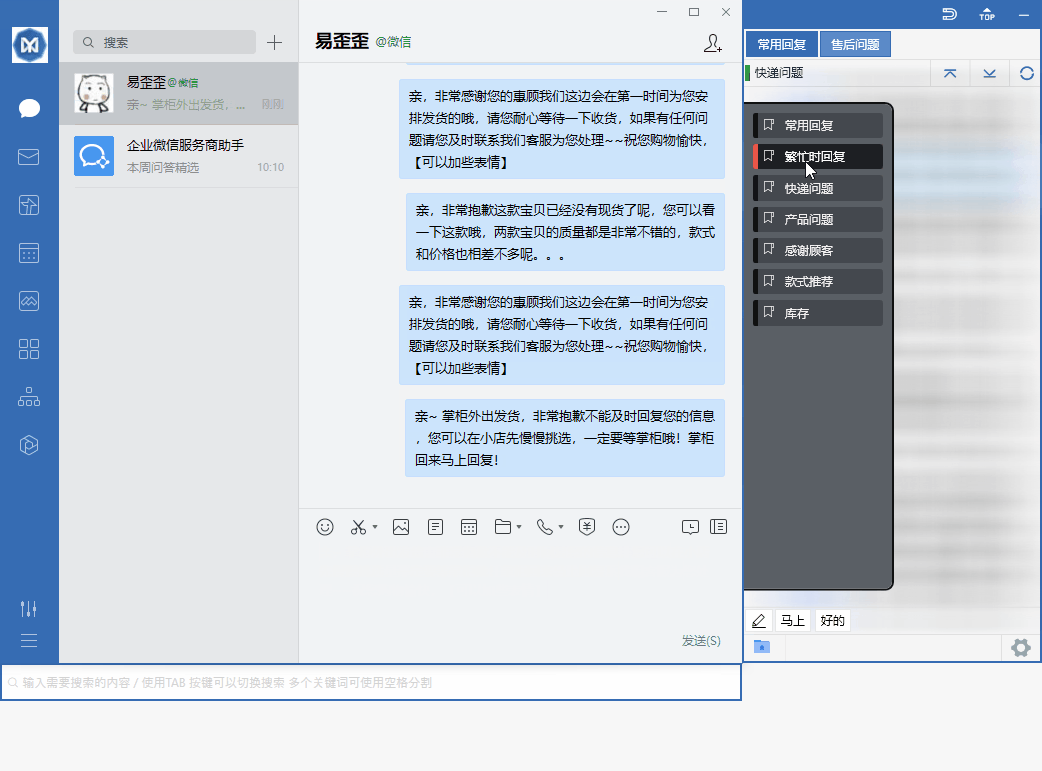
The software automatically docks beside the chat window you are using (WeChat, QQ, Qianniu, Pinduoduo, and so on). For beginners it is recommended to start with editing canned responses: first organize your common greetings, price, and shipping replies into a few canned responses and save them, after which a double-click on a canned response sends it to the chat box with one click.
If you need to share canned responses among several people or sync across multiple devices via the cloud, then register and log in to the online version. Building up your canned-response library first is the most practical first step.
What does Yiwaiwai do, and is it suitable for customer-service agents and e-commerce sellers?
Yiwaiwai is an e-commerce customer-service quick-reply tool.
It automatically docks beside your chat software window (the official side says it is compatible with more than 30 types such as WeChat, QQ, Qianniu, Wangwang, JD Dongdong, Pinduoduo, and DingTalk, and adapts to over 80 platforms). You save common replies as canned responses, and while serving customers a double-click sends them with one click, saving you from typing the same things over and over. It is very well suited to customer-service agents and e-commerce sellers who need high-frequency responses, and teams can also share public canned responses and sync in real time among several people.
The basic features are permanently free, so the barrier is very low for individual agents. Its ecosystem leans toward mainland e-commerce platforms, so cross-border sellers who use overseas platform back ends should test the compatibility themselves.
How do you set up quick replies in Yiwaiwai, and is there a step-by-step tutorial?
The core steps are save canned responses first, then double-click to send.
1) Open Yiwaiwai and go to the canned-response editing/management screen. 2) Create a new canned response, fill in the common reply content (such as Hello, I am here or In stock, ships same day) and save it. 3) As needed, sort canned responses into public canned responses (shared by the team) or private canned responses (visible only to you).
4) Go back to the chat window, where Yiwaiwai automatically docks beside it; find the corresponding canned response and double-click to send it to the chat box. To go even faster, you can assign a global hotkey to a frequently used canned response to send it with one key (hotkeys are a membership feature). The official help site eyycn.com has more detailed illustrated FAQs for reference.
How do you import canned responses into Yiwaiwai, and is there a way to import in bulk?
There is a bulk method, but it is a membership feature. A Yiwaiwai VIP membership supports bulk operations as well as Excel/EBF import and export - you can put your organized canned responses into an Excel sheet and import them into the software all at once, saving you from entering them one by one, and when reinstalling or switching machines you can also export an EBF backup and import it back.
The free version has no bulk import, and the phrase storage cap is about 200 entries; after activating a membership you can store 10,000 or more and bulk operations are supported. For the exact import entry point and table format, it is recommended to follow the prompts within the client import feature (to be confirmed through testing).
How do you get Yiwaiwai to dock beside the chat window without drifting around?
Docking is the core mechanism of Yiwaiwai - after you open the software, it automatically recognizes and docks beside the chat window you currently have active (WeChat, QQ, Qianniu, Pinduoduo, and so on) and follows the window as it moves, making it easy for you to double-click a canned response to send it directly.
If the position drifts around or it does not dock, this is usually related to window recognition, display resolution, or a multi-monitor setup, and you can try: reactivating the chat window once, placing both Yiwaiwai and the chat software on the same screen, and updating to the latest version. The official side has no dedicated FAQ for docking anomalies, so the exact adjustment would need to be confirmed through testing.
How do you send images and videos to customers in Yiwaiwai, and which formats are supported?
Besides text, the Yiwaiwai canned-response library can also store materials such as images, and while serving customers you double-click to send an image to the chat box just like sending text, which is commonly used to send product photos, size charts, promotional posters, and the like.
Exactly which image/video formats are supported and the size limit per file are not clearly listed in the official public materials, so this should be based on what the client actually supports and confirmed through testing. A reminder: whether it can be sent successfully also depends on the docked chat platform (WeChat, Qianniu, and so on) and its own limits on the format and file size. It is recommended to test first with common jpg/png images.
How do you set up shortcut keys in Yiwaiwai, and can they be customized?
Shortcut keys in Yiwaiwai can be customized, but global custom hotkeys are a VIP membership feature and are not in the free version.
After activating a membership, you can bind a global hotkey to a frequently used canned response, so instead of double-clicking in the panel every time, pressing the shortcut sends the canned response to the chat box with one key, which is more efficient when handling heavy customer traffic. The setup entry is generally in canned-response management or software settings, where you assign a key combination to each canned response; just follow the client prompts (the exact entry point would need to be confirmed through testing). The free version instead uses the double-click-to-send method.
How do you set up auto-reply in Yiwaiwai, and can it reply automatically based on keywords?
Yiwaiwai is positioned as a quick-reply tool - you save common canned responses and send them with one click by double-clicking or using a hotkey; the core is helping you quickly find and send a canned response, not an unattended bot.
The membership version supports multi-keyword search, which lets you type keywords to quickly locate the matching canned response, but this assists you in finding the canned response, which you still send manually. Whether it offers a fully automatic function that auto-replies when a customer keyword is detected is not clearly explained in the official public materials and would need to be confirmed through testing. If you need a fully automatic customer-service bot, you may need to choose a different tool.
Where do you find Yiwaiwai canned-response templates, and does the official side provide ready-made ones?
Yiwaiwai canned responses mainly rely on you editing, organizing, and entering them yourself - you save common greetings, quotes, shipping, and after-sales replies as canned responses and sort them into public canned responses (shared by the team) or private canned responses (visible only to you).
Whether the official side provides a ready-made library of industry canned-response templates is not clearly explained in the public materials, so this should be based on whether the client actually comes with templates and confirmed through testing. A practical approach: after activating a membership, use Excel/EBF to import in bulk and bring in all at once the canned responses you have gathered online or accumulated yourself, which is more efficient than looking for templates one by one.
Can Yiwaiwai be downloaded, installed, and used normally in Hong Kong?
The download and install step is usually fine in Hong Kong: the official installer is hosted on an Alibaba Cloud Hong Kong OSS node, which is geographically closer to Hong Kong and Taiwan, so downloads generally go smoothly.
The installer is also small (about 40 to 80 MB), and once installed you can use the basic quick-reply features. What you should note is that the login and cloud sync of the online version rely on mainland services, and overseas network reachability is not specifically addressed by the official side and is unverified, so testing is recommended. If you only use it on a single machine, installing the standalone/offline version directly is recommended: it is entirely local, offline, and requires no registration, which is the most hassle-free.
Will Yiwaiwai be throttled or fail to open when used in Taiwan?
First, to clarify: the Yiwaiwai installer is very small (about 40 to 80 MB) and is officially hosted on an Alibaba Cloud Hong Kong OSS node, which is geographically close to Taiwan, so under normal conditions it is not deliberately throttled and downloads are generally fast; cross-border public networks are affected by carrier interconnection quality, so speeds varying at different times is normal.
As for failing to open, that is mostly related to network jitter or the software lagging while running, rather than being blocked. The login/cloud sync of the online version relies on mainland services, and overseas reachability is not clearly stated by the official side and would need to be confirmed through testing. The most stable approach is to use the standalone/offline version, which runs purely locally and offline, avoiding network issues.
When using Yiwaiwai in Singapore, can an overseas IP log in normally and set up canned responses?
Basic Yiwaiwai canned-response setup does not depend on an internet connection - after downloading and installing, you can edit canned responses and use quick replies directly, registration is not required, and when not registered data is kept only on your local machine.
What may actually be affected by the overseas network is the account login and cloud sync of the online version, which rely on mainland services; whether an overseas IP can log in smoothly is not clearly explained by the official side and is unverified, so it would need to be confirmed through testing in Singapore. The suggestion: if you only use it on one computer, choose the standalone/offline version directly, editing canned responses locally and using it without logging in or connecting to the internet; only if you really need multi-device cloud sync should you try logging in to the online version and test the reachability.
After downloading Yiwaiwai in Malaysia, does it lag, and do I need a VPN accelerator?
First, distinguish two things. The download stage: the installer is very small (about 40 to 80 MB) and is hosted on an Alibaba Cloud Hong Kong OSS node, which is generally fast enough for Malaysia, and most so-called slowness is network jitter; if the network is unstable, you can use a download manager that supports multi-threading plus resume (such as IDM), which can resume after a disconnection (a community method, not endorsed by the official side).
Runtime lag: this is usually related to your computer specs or background programs, and you can update to the latest version, close memory-hungry background programs, reduce add-ons, and clear the cache. The official side has no accelerator or accelerated route, so the most stable option is to switch to the standalone/offline version, which runs purely locally and bypasses network issues directly.
Compiled from public sources such as Taobao Qianniu, Pinduoduo Merchant, Douyin E-commerce and others; every link is clickable for verification.
Frequently Asked Questions
Can Yiwaiwai be used in Thailand, and can a Thai phone number register an account?
Whether Yiwaiwai can be used stably in Thailand is not specifically addressed by the official side or by Chinese-language communities; it is unverified and would need testing. On registration: Yiwaiwai mainly uses a mainland phone number (11 digits plus a 6-digit SMS code), and whether a Thai phone number can receive the code and register is not clearly stated by the official side and very likely is not supported, so it would need to be confirmed through testing. There are two alternatives: first, some pages mention that you can register with email plus password (the email receives an activation code), and overseas users can try email first; second, simply use the standalone/offline version, which requires no account registration at all and is purely local, bypassing the phone-number problem.
Is Yiwaiwai failing to open in Vietnam because it is blocked, and how do I fix it?
It is not necessarily blocked. The Yiwaiwai installer is very small and is hosted on an Alibaba Cloud Hong Kong OSS node; the more common reasons for failing to open are download network jitter, install permissions, or the software lagging while running. You can troubleshoot in this order: 1) If the install fails, right-click the installer and Run as administrator, and do not install it to the C drive. 2) If the network is unstable, re-download with a multi-threading plus resume download manager. 3) If it lags after installing, update to the latest version, close background programs, reduce add-ons, and clear the cache. Overseas reachability is not clearly stated by the official side and is unverified. The most stable solution is to use the standalone/offline version directly, which is purely local and offline, avoiding network issues at the root.
How do you use Yiwaiwai on an Android phone, and can the mobile side set up quick replies?
Yiwaiwai supports Android, and canned responses can roam across devices with your account - canned responses you edited on the computer can be synced, viewed, and used on the phone after you log in to the same account. However, the mobile side leans more toward a supporting role of canned-response storage and viewing, while the truly high-frequency quick-reply work happens mainly on the Windows desktop side (together with Qianniu, Pinduoduo, WeChat, QQ, and so on). Whether the mobile side can dock to windows and set up full quick replies the way the computer does is not detailed in the official public materials and would need to be confirmed through testing. Multi-device sync requires logging in to the online-version account.
Can Yiwaiwai be installed on an Apple iPhone, and what do I do if it cannot be found in the App Store?
Yiwaiwai has an iOS version (the App Store name is Yiwaiwai, about 14 MB in size) and can be installed on an Apple phone. If you cannot find it, it may be related to your App Store country/region - the app is mainly listed in the China region, and overseas-region accounts may not be able to find it, so you can try switching to a China-region Apple ID and searching again (to be confirmed through testing). Note that the iOS side is positioned as a supporting tool for canned-response storage and viewing, while the main paid and heavy use are on the Windows desktop side. If you only use it on a single machine, you can also use the standalone version on the computer.
How do you install and do the first-time setup of the Yiwaiwai Windows computer version?
Installation steps (per the official wording): 1) Go to the Windows download page on the official site yiwaiwaiservice.com to download; Win7/8/10/11 are supported and XP is not. 2) Run the installer, preferably right-click and Run as administrator to avoid permission issues, and click Next. 3) Use Browse to change the install directory to the D drive (such as D:\CustomerServiceTools\Yiwaiwai), and do not install it to the C drive, which makes backups easier. 4) Check Create desktop shortcut and click Next until it finishes. First-time setup: after opening the software, it automatically docks beside the chat window; first go edit and save a few common canned responses, and during service a double-click sends them. The basic features can be used without requiring registration.
Can Yiwaiwai be used on a Mac, and is the setup process the same?
Yiwaiwai can be used; the official side provides a macOS version (the package is served directly from the Mac download page on the official site yiwaiwaiservice.com). After installation, if you are told it cannot be opened or is blocked by the system, follow the official solution: System Preferences, then Security and Privacy, then General, then choose Open Anyway. The official pages do not distinguish between Intel and Apple Silicon chips and do not state a minimum macOS version. After installation, the usage idea is the same as on Windows: edit your canned responses first, the software docks beside the chat window, and double-click to send. The basic features are permanently free and do not require registration.
What do I do if a Taiwan phone number cannot receive the verification code when registering for Yiwaiwai?
Yiwaiwai registration mainly uses a mainland 11-digit phone number plus a 6-digit SMS code, and a Taiwan or other overseas phone number often cannot receive the code (the official side does not clearly support overseas numbers; to be confirmed through testing). Two alternatives: first, some registration pages support registering with email plus password, where the email receives an activation code, and overseas users can try email first; second, if you only use it on a single machine and do not need cloud sync or multi-person sharing, install the standalone/offline version directly, which requires no account registration at all and is ready to use after download and installation, avoiding the problem of not receiving the code at the root.
Can Yiwaiwai be registered with email, and what do overseas users without a mainland phone number do?
Yes. Yiwaiwai registration mainly uses a mainland phone number, but some pages also mention support for registering with email plus password - enter the email, set a password, and the email receives an activation code to complete activation. Overseas users without a mainland phone number can simply take the email route first. If even email registration does not go smoothly, or if you only use it on one computer as a single machine anyway, the easiest option is to use the standalone/offline version directly: it requires no account registration at all, is ready to use after download and installation, and keeps data on your local machine; it just does not support cloud sync or multi-person sharing, so when you need those features you can then find a way to register the online version.
Can the free version of Yiwaiwai use quick replies and docking, and what does membership unlock?
Yes. The basic features of Yiwaiwai are permanently free - after download and installation you can use quick replies, window docking, and canned-response editing without requiring registration, and double-click to send, which meets everyday service needs. Membership (VIP) mainly unlocks the following: phrase storage raised from about 200 entries to 10,000 or more, multi-keyword search, global custom hotkeys, bulk operations, Excel/EBF import and export, cloud sync and multi-device roaming, team-shared canned responses, 7-day automatic cloud backup, and so on. In short: for personal use with low volume, the free version is enough; for a massive number of canned responses, bulk management, and multi-person team sync, upgrade to membership.
How much does a Yiwaiwai membership cost per month, and how do overseas users pay to activate it?
There is no monthly plan for the personal VIP of Yiwaiwai; the official side uses annual subscriptions: 48 yuan for 1 year, 76 yuan for 2 years, and 98 yuan for 3 years (the 3-year contract is about 32.7 yuan per year), all priced in yuan. The basic features are permanently free anyway. On payment, this is the mainland official site pricing in yuan, and the official side does not separately list Hong Kong/Taiwan or overseas currency prices; overseas users usually pay via Alipay, WeChat, or a Taobao top-up proxy (to be confirmed through testing). If payment is temporarily inconvenient and you only use it on a single machine, you can use the free standalone version as a stopgap first.
Is there a complete how-to video or illustrated tutorial for Yiwaiwai beginners?
The Yiwaiwai official help site has fairly complete illustrated FAQs covering common questions such as registration, download and installation, and multi-device use, so beginners can look up the exact operations there. Whether there is a full set of official how-to videos is not clearly explained in the public materials and would need to be confirmed through testing. Getting started is actually not complicated; just remember the main thread: download and install (look for the official site yiwaiwaiservice.com), the software automatically docks to the chat window, edit a few common canned responses, and double-click or use a hotkey to send. Get this flow working first, then study advanced features such as bulk import and cloud sync as needed.
How do you set a frequently used canned response to a shortcut key in Yiwaiwai to send it with one click, and what are the exact steps?
Yiwaiwai uses the global custom hotkey feature; note that it is a VIP membership feature and is not in the free version. The rough steps: 1) Activate a membership. 2) Go to canned-response management and select the frequently used canned response you want to bind. 3) Assign it a set of global hotkeys (set the key combination as prompted by the client). 4) After saving, press that hotkey in any chat window to send this canned response to the chat box with one click, without double-clicking in the panel again. The exact setup entry follows the client interface and is to be confirmed through testing. The free version instead uses the double-click-to-send method.
When using Yiwaiwai in Indonesia on an overseas network, will my saved canned responses be lost during sync?
Whether your saved canned responses can be lost during sync while using Yiwaiwai in Indonesia on an overseas network depends on the edition. If you use the connected edition (Pro), the scripts are stored in the cloud, and once you sign in they sync automatically across multiple devices, so in principle they will not be lost just because you switched networks. However, cloud sync relies on servers in mainland China, and whether an overseas or cross-border network can connect stably and sync smoothly is not officially documented for overseas scenarios, so you need to confirm it yourself through testing. The safest approach is to switch to the standalone (offline) edition: it stores everything locally, does not go online, and does not upload to the cloud, so the scripts are kept on the local machine and will not be lost because of network issues. The downside is that it cannot roam across multiple devices, so remember to back it up regularly yourself.
Is Yiwaiwai convenient for sending shipping canned responses for Chinese e-commerce sellers in the Philippines?
Yiwaiwai itself is a window-docking quick-reply tool. It can automatically dock to chat windows such as QQ, WeChat, Qianniu, Wangwang, JD Dongdong, Pinduoduo, and DingTalk, and you send a canned response with a double-click, which makes shipping scripts and common replies very convenient. The basic features are permanently free. That said, what it mainly supports is the mainland China e-commerce ecosystem (Qianniu, Pinduoduo, Douyin Store, and the like). If what you use in the Philippines is the back end of overseas platforms such as Shopee or Lazada, whether it can dock normally and how well it works are not officially documented, so you need to confirm it yourself through testing.
Can Yiwaiwai be downloaded in Cambodia, and how should a customer service team set it up for bulk use?
The Yiwaiwai software itself has no regional download restrictions. Just look for this site, yiwaiwaiservice.com, and get the package from the download page (downloading directly from this site is the normal process). The approach for team-wide bulk use: register an account with the connected edition. Members with membership can create multiple customer service sub-accounts, assign roles (pre-sales, after-sales, quality inspection, and so on) and separate permissions. Canned responses are divided into public scripts (shared by the team, synced in real time, and editable by several people at once) and private scripts (visible only to yourself). The main account sets up the public scripts, and each member signs in to share them. Note that cloud sync relies on servers in mainland China, so the reachability of the Cambodian network needs to be confirmed by your own testing.
When using Yiwaiwai in Myanmar, the import of canned responses keeps failing to load. What should I do?
When the import of canned responses keeps failing to load while using Yiwaiwai in Myanmar, first work out which situation you are in. If you use the connected edition, importing or loading scripts requires connecting to the cloud servers in mainland China, and when the cross-border network in Myanmar is unstable it easily keeps spinning. This is a network problem, and you can retry at a different time or on a more stable network. The most worry-free option is to switch to the standalone (offline) edition: it runs entirely locally, does not need to go online, and importing and using scripts are not affected by the cross-border network. Also check whether the format of the import file is correct (Excel and EBF are supported); the wrong format will also cause the import to fail. The exact behavior of overseas networks needs to be confirmed by your own testing.
On Windows 11, Yiwaiwai fails to dock to the chat window. How do I realign it?
Yiwaiwai officially supports Windows 7, 8, 10, and 11 (Windows XP is not supported), and the docking feature is compatible with Windows 11. If docking fails or the alignment is off, you can troubleshoot like this first: update the software to the latest version (new versions include performance and compatibility improvements); start it by right-clicking and choosing Run as administrator, because insufficient permissions often cause docking problems; and close and reopen the chat window you want to dock to so it can recognize and realign. If that still does not work, you can contact official customer service for help. The exact menu steps for realigning are not separately listed by the official documentation, so confirm them through testing.
On Windows 10, Yiwaiwai shows that the file is too large when sending a video. How do I adjust the settings?
Yiwaiwai invokes and sends a video as a piece of canned-response material. The message that the file is too large usually means the receiving chat platform (such as WeChat or QQ) has its own limit on the size of a single file, and it is not Yiwaiwai throttling. Workable options: compress the video to a size the platform allows before adding it to a script, or switch to a method the platform supports (such as sending a link or a cloud drive). Yiwaiwai does not have any dedicated documentation about a video size setting; the exact limit depends on the chat platform you use, so it is recommended that you confirm it yourself through testing.
Can canned responses on Yiwaiwai sync between Android and iPhone?
Yes, provided you use the connected edition and sign in to the same account. Yiwaiwai supports all platforms: Windows, macOS, Android, iOS, and a browser extension. Canned responses roam across devices with your account and sync in real time through the cloud, so a change made on one device updates automatically on the other signed-in devices. That is why Android and iPhone signed in to the same account can sync with each other. Note: standalone (offline) edition data is stored only on the local machine and is not uploaded to the cloud, so it does not support cross-device sync. Also, the mobile apps are mainly a companion tool for storing and viewing scripts; the main editing and paid features are on the desktop. Whether the cloud can be reached smoothly from overseas needs to be confirmed by your own testing.
Can Yiwaiwai be signed in with a WeChat QR code, and how do I import canned responses after scanning?
Based on the available official materials, Yiwaiwai registration and sign-in is primarily by phone number (enter a phone number plus an SMS verification code), and some pages also support email plus password registration. There is no mention of signing in via a WeChat QR code. So WeChat QR code sign-in cannot be confirmed as supported at present, and it is recommended to rely on the actual entry point on the official sign-in page. The general way to import canned responses is to use the import feature inside the client (Excel and EBF formats are supported) to bring scripts in batches. Whether WeChat QR code sign-in exists needs to be confirmed by your own testing or by asking official customer service.